
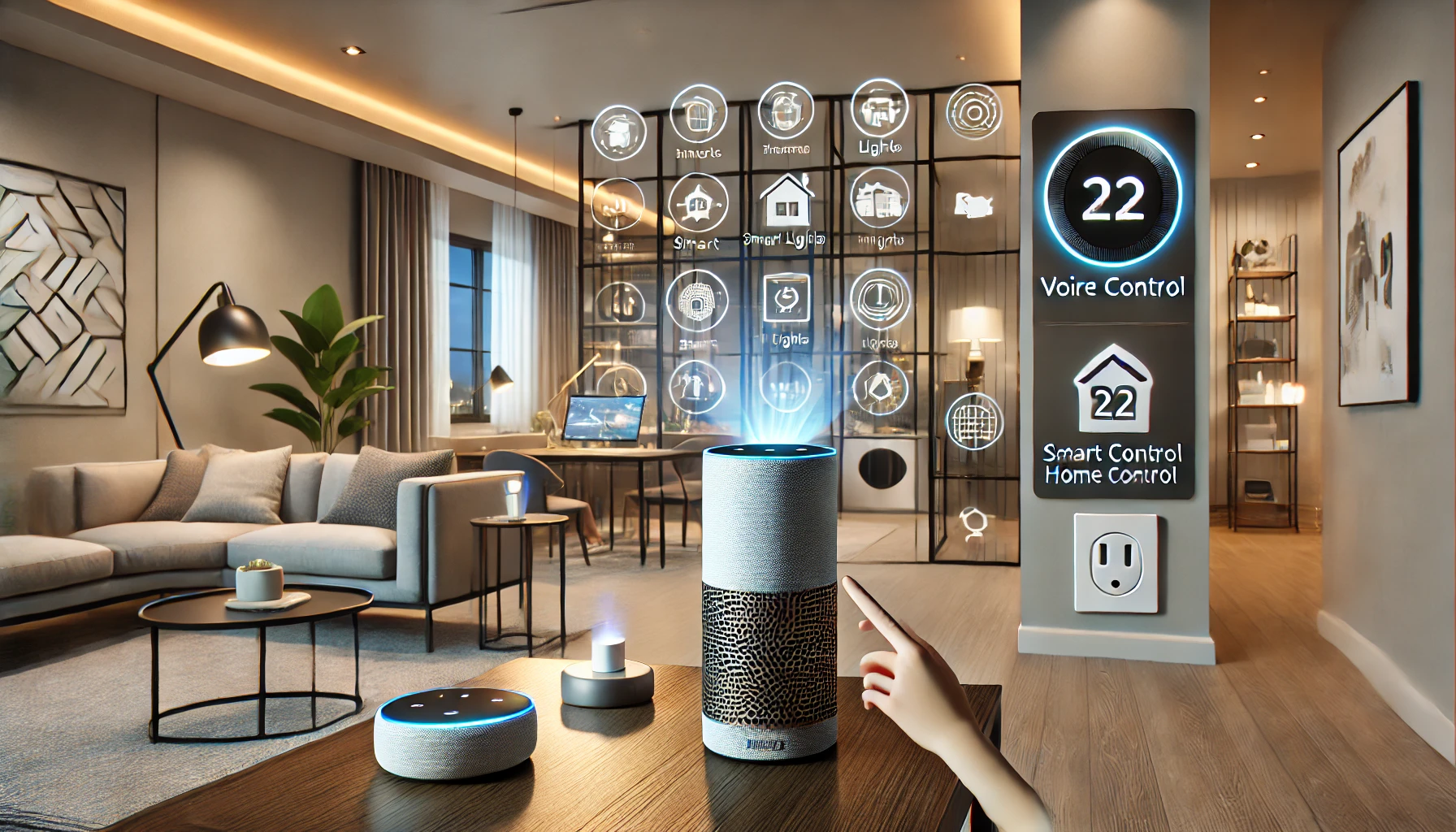
One of the most exciting and practical features of smart home technology is voice control. With just a simple command, you can dim the lights, adjust the thermostat, play music, lock the doors, or check the weather. It’s not just convenient — it makes your home feel futuristic and intuitive.
Whether you’re brand new to smart tech or looking to expand your setup, learning how to configure voice control will unlock a whole new level of automation and comfort. In this guide, we’ll walk you through everything you need to know to set up and optimize voice control in your smart home, step by step.
What Is Voice Control in a Smart Home?
Voice control allows you to interact with your smart devices using spoken commands. Instead of using an app or physical switch, you simply say what you want — and your devices respond.
This is made possible by voice assistants such as:
- Amazon Alexa
- Google Assistant
- Apple Siri (via HomeKit)
Each assistant connects to compatible smart home devices and interprets your spoken commands into actions.
Examples of voice commands:
- “Alexa, turn on the kitchen lights.”
- “Hey Google, what’s the temperature in the living room?”
- “Hey Siri, lock the front door.”
Voice control adds a hands-free layer of convenience that’s especially useful when your hands are full, you’re multitasking, or accessibility is a priority.
Step 1: Choose Your Voice Assistant Ecosystem
The first step is selecting which voice assistant you’ll use as the foundation of your system. Most smart homes are built around one of three main platforms:
Amazon Alexa
- Works with the largest number of smart devices
- Devices: Echo Dot, Echo Show, Echo Studio
- App: Amazon Alexa App (iOS and Android)
- Supports routines, groups, and multi-room audio
Google Assistant
- Strong integration with Google services
- Devices: Google Nest Mini, Nest Hub, Nest Audio
- App: Google Home
- Supports routines, broadcast, and voice match
Apple Siri (HomeKit)
- Best for users deeply integrated into the Apple ecosystem
- Devices: HomePod Mini, iPhone, iPad
- App: Apple Home
- Known for privacy and seamless iOS control
Tip: Stick with one ecosystem to ensure device compatibility and smoother automation. Most third-party devices specify which assistants they support.
Step 2: Get a Voice-Control Device
Once you’ve picked your ecosystem, choose at least one smart speaker or smart display to act as your home’s voice command center.
Popular entry-level options:
- Echo Dot (5th Gen)
- Google Nest Mini
- Apple HomePod Mini
For more functionality, consider:
- Echo Show or Nest Hub for visual control and video calls
- Smartphones (iOS/Android) — useful for voice control on the go
- Wearables like Apple Watch or Google Pixel Watch
You can place devices in different rooms to create a whole-home voice system.
Step 3: Connect Your Smart Devices
Next, you’ll need to link your compatible smart devices to your chosen voice assistant. These may include:
- Smart lights (Philips Hue, Sengled, LIFX)
- Smart plugs (TP-Link, Wemo, Meross)
- Smart thermostats (Nest, Ecobee, Honeywell)
- Smart locks (August, Yale, Schlage)
- Smart cameras and doorbells (Ring, Arlo, Google Nest)
- Appliances, fans, TVs, and more
How to link devices:
- Install the smart device and connect it to its app
- Open your voice assistant’s app
- Find the “Add Device” or “Skills & Games” section
- Search for the brand of your device
- Sign in and authorize connection
- Assign the device to a room or group
Now, your assistant can control that device by name or by room.
Step 4: Create Voice Commands and Groups
To make voice control easier and more natural, organize your devices into groups or rooms (like “Living Room,” “Bedroom,” or “Kitchen”).
Examples:
- “Turn off the bedroom lights”
- “Turn on all downstairs lights”
- “Lock the front door”
- “Set the thermostat to 72 degrees”
This structure makes it easier for your voice assistant to understand what you’re referring to — especially when you have multiple devices.
Some assistants also allow for custom names, so you could rename “Desk Lamp” to “Reading Light” for easier commands.
Step 5: Set Up Routines and Automations
Routines allow you to execute multiple actions with a single voice command. These are incredibly powerful for streamlining your daily habits.
Examples of useful routines:
- “Good Morning” – Turns on lights, reads the weather, starts coffee maker
- “Good Night” – Turns off all lights, locks doors, adjusts thermostat
- “Leaving Home” – Turns off devices, arms security, shuts blinds
- “Workout Time” – Plays your workout playlist, turns on fan, adjusts lighting
Each platform supports these features in their apps:
- Alexa: “Routines” tab
- Google Assistant: “Routines” tab in Google Home
- HomeKit: “Automation” section in Apple Home
You can trigger routines via voice, time of day, location, or sensors (e.g., motion).
Step 6: Fine-Tune Voice Recognition
Most assistants support voice matching or voice profiles. This allows the assistant to recognize different members of the household and tailor responses accordingly.
Benefits of voice profiles:
- Personalized calendar reminders
- Custom music or news sources
- Secure control of sensitive devices (e.g., door locks, shopping lists)
Enable this in your assistant’s settings and train it to recognize your voice. Each family member can set up their own profile for a truly personalized experience.
Bonus: Advanced Voice Control Features
As you get more comfortable, explore these features:
Intercom/Broadcast
- Use your voice to send messages to other rooms (e.g., “Dinner is ready!”)
- Available on Echo and Nest devices
Multi-Room Audio
- Play music throughout the house with one command
- Create speaker groups (e.g., “Living Room + Kitchen”)
Security Integration
- Use voice to arm/disarm security systems
- Get alerts or camera feeds on smart displays
Smart Home Scenes
- Combine lighting, temperature, music, and more into mood-based scenes
- Examples: “Movie Time,” “Date Night,” “Focus Mode”
Common Challenges and How to Fix Them
Voice Not Recognized
- Retrain your voice profile
- Speak clearly and avoid background noise
Device Not Responding
- Check Wi-Fi connection
- Ensure the device is linked and named properly in the app
- Restart or update the device
Commands Not Understood
- Try rephrasing (e.g., “Turn on the lamp” vs. “Turn on the desk light”)
- Use group or room names for clarity
Privacy Concerns
- Adjust privacy settings in the assistant’s app
- Delete voice recordings regularly if preferred
- Use the mute button on your speaker when needed
Tips for the Best Voice Control Experience
Place smart speakers away from TVs or loud areas
Use simple, consistent naming conventions for devices
Keep apps and firmware up to date
Review activity history to see which commands are working or failing
Start small — build your setup gradually
Test routines to make sure they behave as expected
Final Thoughts: Speak Your Home’s Language
Voice control turns your smart home into a truly interactive space. It adds a level of convenience, personalization, and accessibility that apps and switches simply can’t match.
Whether you’re starting with a single smart speaker and a few bulbs, or managing an entire network of connected devices, voice control can tie it all together — with no hands required.
Once it’s set up, you’ll wonder how you ever lived without it. From adjusting lights to running morning routines, the power to control your home is as close as your next word.
Talk to your home — it’s ready to listen.