
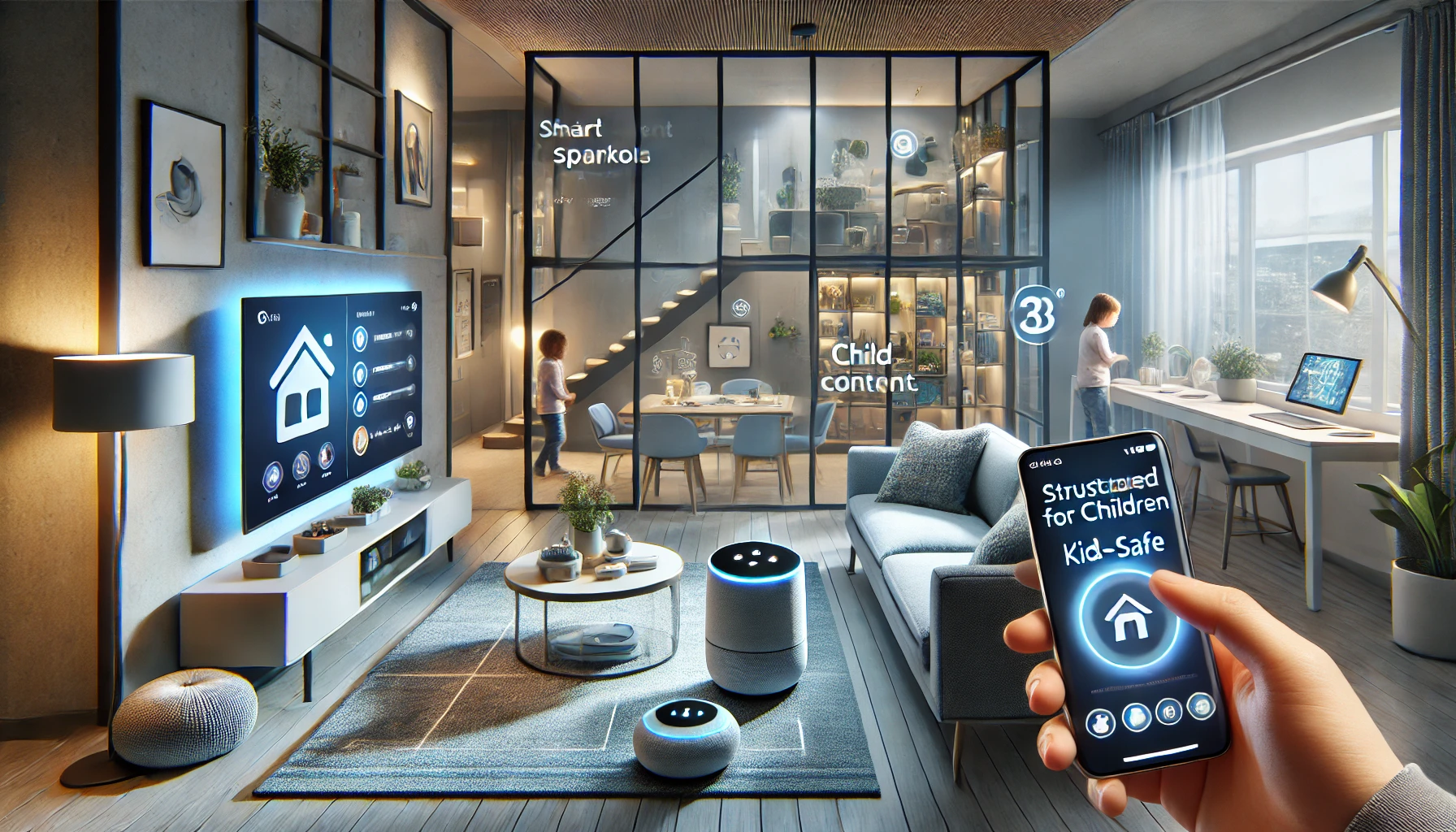
Smart homes bring convenience and control to everyday life — but when children are involved, it becomes just as important to set boundaries as it is to automate comfort. Parental controls in a smart home go beyond internet filters; they involve managing what devices your children can access, how they use them, and when.
In this guide, you’ll learn how to set up parental controls in a smart home to protect your kids, create healthy tech habits, and maintain a secure, age-appropriate environment.
Why Parental Controls Matter in a Smart Home
Children today grow up in environments where smart speakers, screens, and voice assistants are part of everyday life. Without proper controls, they may access inappropriate content, make unauthorized purchases, or become overexposed to screen time.
Benefits of setting up parental controls:
- Filter inappropriate content (audio, video, and search results)
- Control screen and device time
- Monitor smart home activity
- Set access limits on voice assistants and smart TVs
- Foster independence while keeping boundaries
The goal isn’t to block everything — it’s to create a safe and guided environment where technology supports development.
1. Create Individual User Profiles for Each Child
The first step in building parental controls is to create separate profiles for children on your smart home platform.
On Google:
- Use Google Family Link to create a supervised Google Account
- Link it to Google Assistant, smart displays, or Android TVs
- Control search filters, app access, and screen time
On Amazon:
- Create a child profile using Amazon Kids (formerly FreeTime)
- Assign it to an Echo device or Fire tablet
- Set time limits, filters, and purchase permissions
On Apple:
- Use Family Sharing to manage content restrictions
- Set up Screen Time for individual apps and services
- Limit purchases and restrict Siri web searches
Benefit: Children only see what’s appropriate for their age, and you gain dashboard control over all activity.
2. Set Voice Assistant Restrictions
Voice assistants like Alexa, Google Assistant, and Siri are powerful tools — but children can easily misuse them without filters.
Control options:
- Block explicit music content
- Disable voice purchasing
- Limit web search answers or disable web access
- Restrict calls, messages, and camera functions
- Turn off Drop In (intercom feature) between devices
How to:
- On Alexa, enable Amazon Kids and adjust settings from the Parent Dashboard
- On Google, use Family Link to manage Assistant voice settings
- On Apple, limit Siri content access through Screen Time settings
Tip: Set up voice match so only adult voices can activate certain commands.
3. Filter Content on Smart TVs and Displays
Smart TVs and smart displays (like Google Nest Hub or Echo Show) give children visual access to apps, videos, and even live feeds.
Parental control features:
- Restrict app downloads and access
- Set viewing limits for YouTube, Netflix, etc.
- Use kids-only platforms like YouTube Kids
- Disable voice-activated browsing or purchases
- Enable PINs for restricted content or settings changes
Tools to help:
- Google TV Kids Profiles
- Amazon Fire TV parental settings
- Apple TV parental restrictions
- Netflix and Disney+ individual kid profiles
Real-world use: You can allow educational content and block entertainment apps during homework time.
4. Manage Smart Speaker Interactions
Smart speakers are often placed in shared spaces — but with the wrong settings, they can allow kids to access inappropriate jokes, music, trivia, or content.
What to restrict:
- Song lyrics and explicit music
- Voice messages or announcements
- Shopping or ordering features
- Inappropriate trivia or Alexa “skills”
Best practices:
- Enable kid-friendly mode or use child-specific speaker models (e.g., Echo Dot Kids Edition)
- Set quiet time or downtime schedules
- Place devices out of bedrooms if late-night use becomes an issue
- Use the speaker’s activity log to review what was asked or played
5. Set Screen Time Limits Across Smart Devices
Children often bounce between tablets, TVs, and smart displays. It’s important to control screen exposure consistently across all platforms.
Screen time tools:
- Google Family Link: Set daily limits per app and device
- Amazon Parent Dashboard: Manage use across Echo, Fire tablets, and TV
- Apple Screen Time: Lock apps, block during downtime, limit categories
- Smart TVs: Use daily timers and “TV Off” routines
Routine idea: Create “tech-free time” blocks each day where all screens are disabled or minimized.
6. Use Smart Lighting and Routines for Structure
Your smart home can reinforce routines and transitions without needing constant supervision.
Examples:
- Smart lights dim at bedtime automatically
- “Homework Mode” turns off the TV and starts soft focus music
- “Morning Routine” turns on lights gradually and plays a wake-up playlist
- “Wind-down Mode” triggers calming audio and reduces blue light
Devices to support routines:
- Philips Hue
- LIFX Smart Bulbs
- Google Routines
- Alexa Routines
These setups guide behavior through environment changes, making transitions smoother and less dependent on verbal reminders.
7. Set Up Activity Monitoring and Notifications
Parents need visibility — not spying. Activity monitoring helps you ensure kids are using tech responsibly.
What you can monitor:
- Voice assistant queries and responses
- Smart TV or tablet usage history
- Lock/unlock activity (if smart locks are used)
- Camera or motion sensor triggers
- Screen time stats across apps
Tools:
- Amazon Parent Dashboard
- Google Family Link activity reports
- Apple’s weekly Screen Time reports
- Smart home apps with logs (Ring, Nest, etc.)
Pro tip: Set notification triggers when unusual commands or usage occurs.
8. Control Physical Access With Smart Locks and Sensors
If you use smart locks or door/window sensors, you can create child-specific access rules to ensure safety.
Use cases:
- Disable locks from being opened without a PIN or app
- Alert parents when windows or doors are opened
- Schedule restricted hours for garage or side door access
- Use sensors on cabinets with cleaning supplies or medicine
Devices to consider:
- Yale or August smart locks
- Ring Contact Sensors
- Aqara or Wyze motion/contact sensors
Security tip: Always require PIN verification before unlocking doors through voice assistants.
9. Balance Safety With Trust and Education
Parental controls are essential — but so is talking to kids about why rules exist.
Tips for a balanced approach:
- Explain the “why” behind restrictions
- Let older children have some control over routines
- Create family rules around screen time and tech etiquette
- Use smart displays to show calendars, reminders, and expectations
- Reward responsible use with extended privileges or tech-free incentives
Mindset shift: The smartest homes use technology to teach, not just to block.
10. Review Settings Regularly as Kids Grow
What works for a 6-year-old won’t fit a 13-year-old. Smart homes evolve — and so should your parental settings.
Review checklist:
- Are device permissions still age-appropriate?
- Has screen time increased gradually?
- Are content filters updated?
- Do routines still match school and family schedules?
- Is your child ready for more independence?
Set a recurring reminder every few months to adjust routines, filters, and permissions.
Final Thoughts: Smart Homes Need Smart Parenting
Parental controls in a smart home go far beyond software settings — they involve intentional decisions about how and when your kids interact with technology.
By combining device controls with structure, routines, and ongoing communication, you create a home where technology is safe, helpful, and enriching for the entire family.
Because a truly smart home doesn’t just manage devices — it nurtures digital responsibility.