
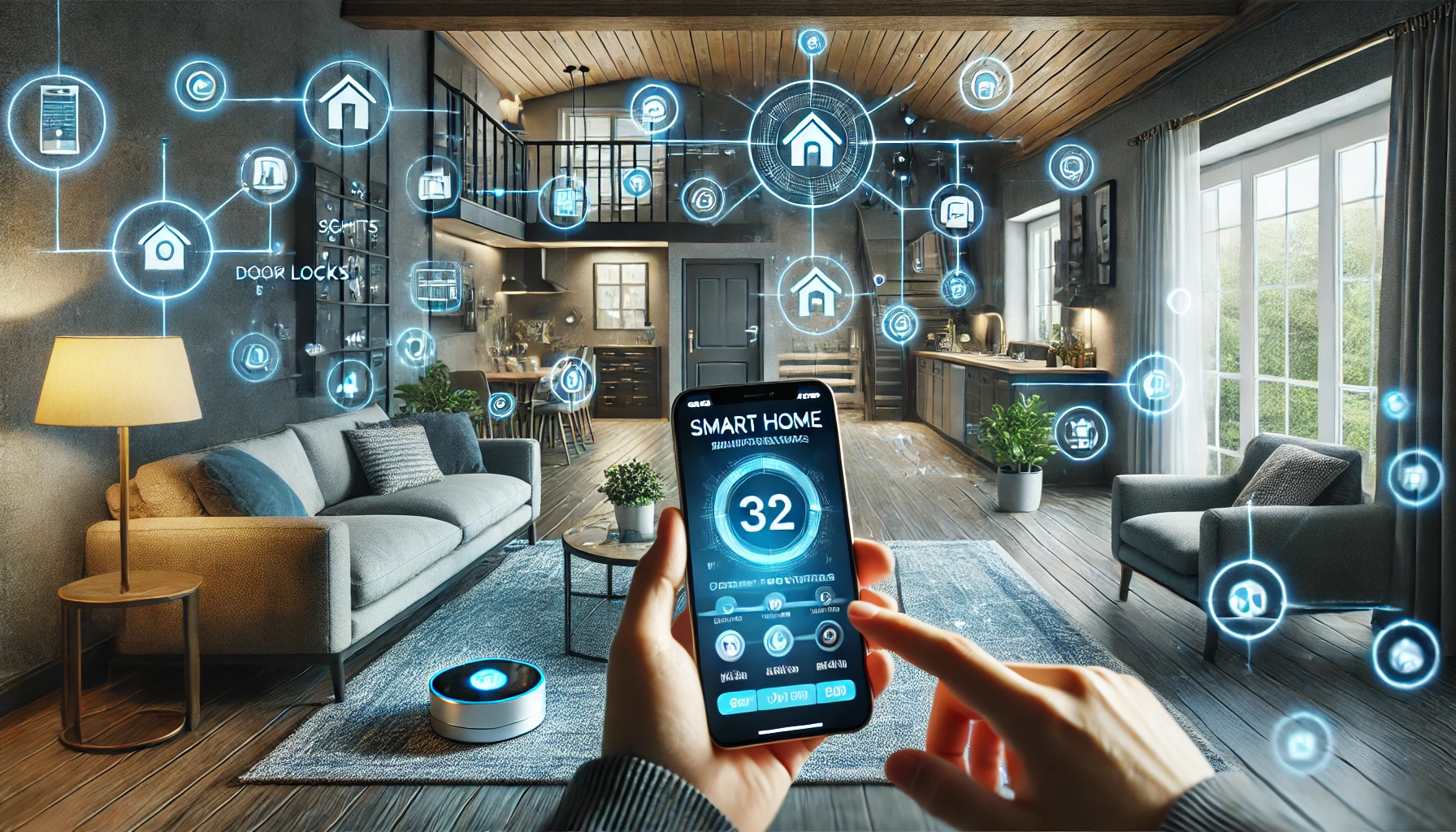
In the world of smart homes, your smartphone is more than just a communication tool — it becomes a universal remote for your entire house. With just a few taps (or voice commands), you can control lighting, security, appliances, entertainment systems, and even monitor your energy usage.
But to truly take advantage of this power, it’s essential to know how to integrate smart home devices with your smartphone properly. When done right, your phone becomes the brain behind a seamless, efficient, and responsive smart living experience.
In this article, we’ll show you how to connect, organize, and maximize smart devices using your smartphone — whether you’re team iPhone or Android.
Why Use Your Smartphone for Smart Home Control?
Using your smartphone offers numerous advantages:
- Centralized control of all devices from one place
- Remote access to your home from anywhere
- Push notifications for events like motion or door activity
- Easy setup and routine creation
- Voice control via digital assistants
- Security management, such as locking doors or viewing cameras
In short: It’s convenient, fast, and always with you.
Step 1: Choose Your Ecosystem (iOS or Android)
Most smart home platforms are designed to work with both Android and iOS. However, your experience can vary depending on which operating system you use.
If you use an iPhone:
- You’ll primarily work through Apple’s Home app (HomeKit)
- Best compatible with Apple-certified devices
- Integrates with Siri for voice control
- Extra privacy and security features built in
If you use Android:
- You’ll use the Google Home app for managing devices
- Great compatibility with Google Assistant-enabled products
- Easy integration with Android tools like Google Calendar and Gmail
- Often includes deeper customization options
Alternatively, both platforms can also use Amazon Alexa, Samsung SmartThings, and third-party apps depending on your setup.
Tip: Stick with one main platform to keep things simple and connected.
Step 2: Download the Smart Home Apps You Need
Most smart home devices come with their own dedicated apps. These are needed for initial setup and fine-tuning features.
Common smart home apps:
- Google Home
- Apple Home (HomeKit)
- Amazon Alexa
- SmartThings (Samsung)
- TP-Link Kasa
- Philips Hue
- Wyze
- Ecobee, Nest, Ring, Arlo, and others
Install the apps for each brand you own, then follow the setup instructions to connect them to your home Wi-Fi and register them under your account.
Pro tip: Use a single email and password manager for all smart home logins for consistency and security.
Step 3: Link Devices to a Central App or Hub
Once your devices are installed, you’ll want to link them into one control app, like Google Home or Apple Home, so you don’t need to juggle multiple interfaces.
How to do it:
- Open your central app (e.g., Google Home)
- Tap “+” or “Add Device”
- Select the brand or type of device
- Log in to authorize the connection
- Assign the device to a specific room
- Test basic controls (on/off, dim, etc.)
Repeat for each smart device in your home. Once completed, you can control all devices from your smartphone — even when you’re away.
Step 4: Use Your Phone’s Voice Assistant
Smartphones come equipped with voice assistants that can control your smart home with simple commands.
iOS (Siri):
- “Hey Siri, turn off the bedroom lights.”
- “Siri, set the thermostat to 70 degrees.”
- “Siri, is the garage door closed?”
Android (Google Assistant):
- “Hey Google, lock the front door.”
- “Hey Google, turn on the coffee maker.”
- “Hey Google, what’s the temperature in the living room?”
Enable voice assistant access in your phone settings to start issuing commands anytime — even hands-free.
Step 5: Create Scenes and Automations From Your Phone
Using your smartphone, you can program custom routines or scenes that control multiple devices simultaneously.
Examples:
- “Good Morning”: Turns on lights, starts music, adjusts thermostat, and shows weather
- “Leaving Home”: Turns off all lights, locks doors, and arms security system
- “Movie Time”: Dims lights, closes blinds, turns on TV
Each ecosystem allows you to build these routines with a few taps:
- In Google Home, go to “Routines”
- In Apple Home, go to “Automation”
- In Alexa, go to “Routines”
- In SmartThings, go to “Scenes” or “Automations”
Trigger options include: Time of day, sunrise/sunset, location (geofencing), motion detection, or voice command.
Step 6: Enable Geofencing for Location-Based Actions
Your smartphone can use your location to automate smart home behavior. This feature is known as geofencing.
Use it for:
- “Arriving Home”: Lights turn on, thermostat adjusts, door unlocks
- “Leaving Home”: Security system arms, all lights and plugs turn off
How to enable:
- Grant location access in your main smart home app
- Set a geographic boundary around your home
- Create automations that trigger based on your location
Tip: You can set different actions for each member of your household if they also use the app.
Step 7: Receive Real-Time Notifications
Smartphones allow you to receive instant alerts from your smart devices — helping you stay informed no matter where you are.
Common alerts:
- Door opened
- Motion detected
- Water leak found
- Camera activity
- Low battery warning
- Appliance status
In your app settings, you can customize which notifications you want and how they’re delivered (push, email, etc.).
Step 8: Monitor and Control Your Home While Traveling
Even when you’re on vacation or at work, your phone can serve as your remote command center.
- Unlock the door for a delivery
- Check security camera footage
- Adjust temperature to save energy
- See who rang the doorbell
- Speak through an intercom feature
- Turn lights on or off to make the home look occupied
Most smart home platforms are cloud-connected, so all you need is an internet connection to stay in control.
Step 9: Use Widgets and Shortcuts for Faster Access
Many smartphones let you add widgets or shortcuts to your home screen for instant control.
iPhone Shortcuts:
- Add smart actions like “Turn off all lights” or “Lock front door”
- Combine multiple steps in one tap
- Place on Home Screen or use Siri
Android Widgets:
- Add smart device tiles for one-tap access
- Use custom routines with app integrations
- Combine Google Assistant voice commands with visual buttons
Result: Faster control without needing to open full apps.
Step 10: Keep Everything Secure
When your smartphone is the key to your entire home, security is crucial.
Best practices:
- Use a strong lock screen password or biometrics
- Enable two-factor authentication on your smart home accounts
- Keep all apps updated
- Use a VPN when accessing your smart home from public Wi-Fi
- Monitor login activity when available
Bonus tip: If you lose your phone, use tools like Find My iPhone or Google Find My Device to lock it down.
Final Thoughts: Your Phone, Your Home in Your Hand
Integrating your smart home with your smartphone gives you control, awareness, and automation at your fingertips. From turning off lights to checking on pets, managing routines to enhancing security — your phone becomes the bridge between your digital and physical worlds.
Whether you’re an iOS user building scenes with Siri or an Android user creating routines with Google Assistant, the smart home starts with smart setup.
Because the future of home control is already in your hand.