
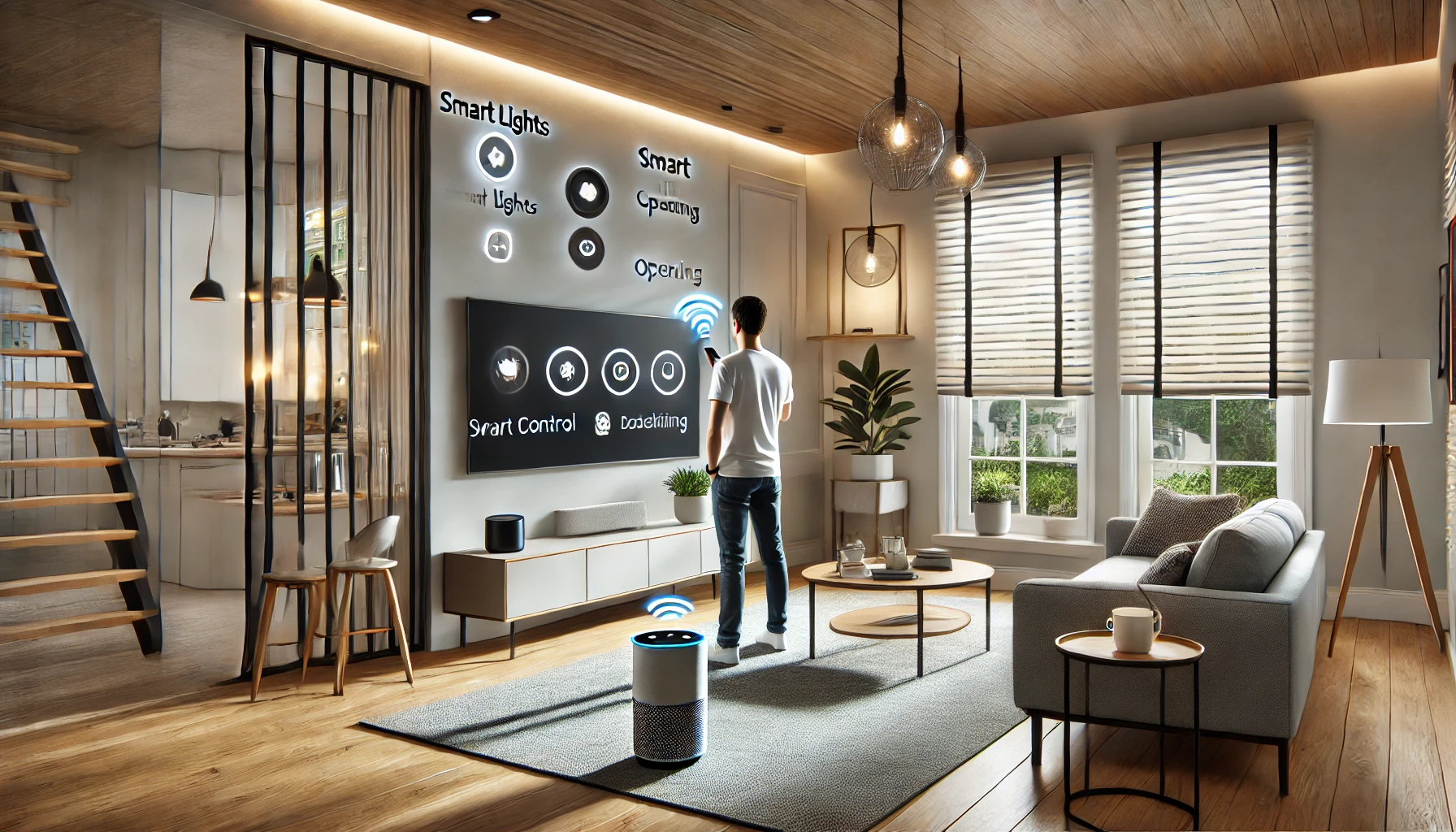
Voice control has become one of the most powerful and convenient features in a smart home. Gone are the days of flipping switches, tapping apps, or even getting off the couch — now, with a simple phrase, you can dim the lights, adjust the thermostat, play music, or lock your doors.
Using voice assistants like Amazon Alexa, Google Assistant, or Apple Siri, smart homes are more intuitive and accessible than ever before. And when set up thoughtfully, voice control can make your home not just smarter, but truly seamless.
In this article, you’ll learn how to control your smart home using just your voice, what devices are compatible, and how to build natural, powerful routines that respond to you instantly.
Why Voice Control Matters in a Smart Home
Voice control enhances accessibility, comfort, and efficiency. It’s hands-free, quick, and integrates naturally into daily life.
Key benefits include:
- Hands-free control while cooking, cleaning, or relaxing
- Better accessibility for elderly users or those with mobility limitations
- Faster access to tasks (e.g., turning off lights in multiple rooms)
- Easy control for kids and guests
- Ability to run multiple actions with one phrase
Let’s explore how to get started.
Step 1: Choose Your Voice Assistant Ecosystem
The first step is to decide which voice platform you’ll use. Most smart devices support one or more of the following:
1. Amazon Alexa
- Supports a wide range of devices
- Excellent at smart home integration
- Skills can extend functionality
- Supported by Echo devices
2. Google Assistant
- Natural language processing is very advanced
- Deep integration with Google services
- Found in Nest speakers and Android phones
3. Apple Siri (via HomeKit)
- Best for iPhone, iPad, and Mac users
- Privacy-focused
- Requires HomePod or Apple device as a hub
Tip: Stick to one ecosystem across your devices to reduce complications and streamline setup.
Step 2: Set Up a Voice-Controlled Smart Speaker or Display
This will serve as the command center for your home.
Best options:
- Amazon Echo Dot / Echo Show
- Google Nest Mini / Nest Hub
- Apple HomePod Mini
Place them in central rooms like:
- Living room
- Kitchen
- Bedroom
- Entryway
Multiple devices can be added throughout the house to allow control from anywhere.
Step 3: Connect Smart Devices to Your Assistant
Once your smart speaker is set up, connect your compatible devices through the respective apps.
Supported devices include:
- Smart lights (Philips Hue, Wyze, Govee)
- Smart plugs and switches (TP-Link, Wemo, Meross)
- Thermostats (Nest, Ecobee)
- Locks (August, Yale, Schlage)
- Cameras and doorbells (Ring, Arlo, Google Nest)
- Blinds and curtains (SwitchBot, IKEA Fyrtur)
- Speakers, TVs, appliances, and more
Follow instructions in the app to:
- Link your smart home devices
- Assign devices to rooms
- Set names for each device (e.g., “Kitchen Light”)
Tip: Choose simple, clear names to improve voice recognition.
Step 4: Learn Basic Voice Commands
Now that everything’s connected, try out some essential voice commands. Here’s a quick guide based on your ecosystem:
Common Alexa commands:
- “Alexa, turn on the living room light.”
- “Alexa, set the thermostat to 72 degrees.”
- “Alexa, lock the front door.”
- “Alexa, start my bedtime routine.”
Google Assistant commands:
- “Hey Google, turn off the bedroom lamp.”
- “Hey Google, what’s on my calendar today?”
- “Hey Google, play relaxing music.”
- “Hey Google, open the blinds.”
Siri/HomeKit commands:
- “Hey Siri, turn on the kitchen lights.”
- “Hey Siri, set a scene for dinner.”
- “Hey Siri, what’s the temperature inside?”
- “Hey Siri, close the garage door.”
Start with simple tasks, then build toward more complex sequences.
Step 5: Set Up Voice-Controlled Routines
Routines allow you to combine multiple actions into one voice command.
Example: “Good Morning”
- Turns on lights in bedroom and kitchen
- Starts coffee maker via smart plug
- Reads calendar and weather forecast
- Adjusts thermostat
Example: “Movie Time”
- Dims lights
- Closes blinds
- Turns on TV
- Plays Netflix
Example: “Leaving Home”
- Turns off all lights
- Locks doors
- Arms security system
- Lowers thermostat
Set up routines in the assistant’s app, assign a trigger phrase, and test it to ensure everything works.
Step 6: Add Voice Profiles for Personalization
Many platforms now support voice recognition, allowing the assistant to know who is speaking and tailor responses.
Benefits of voice profiles:
- Personal calendar or reminders
- Custom playlists
- Message access or calling
- More secure control over sensitive devices (e.g., locks)
To enable: Use your app (Alexa, Google Home, or Home app) to teach the assistant your voice.
You can add multiple profiles for family members — great for shared smart homes.
Step 7: Secure Your Voice Assistant
Since voice assistants can control locks, cameras, and other sensitive devices, it’s important to secure them.
How to protect your voice assistant:
- Mute the mic when not in use (if desired)
- Set voice purchase PINs to prevent accidental orders
- Review and delete voice recordings regularly
- Use voice match to restrict access to certain commands
- Avoid placing assistants near windows or entryways
Security is just as important as convenience — take a moment to configure these options.
Step 8: Use Smart Displays for Visual Feedback
Voice assistants with screens provide an added layer of interaction.
What you can do:
- View security cameras
- Display to-do lists or calendars
- Watch YouTube or recipes while cooking
- Control devices via touchscreen
- Make video calls
Best for: Kitchens, offices, bedrooms, or entryways.
Step 9: Control Smart Home Devices from Your Phone by Voice
Even without a smart speaker nearby, you can use your phone’s assistant.
- iPhones: “Hey Siri…”
- Android phones: “Hey Google…”
- Alexa app: Tap the mic icon or say “Alexa”
This is especially useful when:
- You’re in the car
- Away from home
- Using Bluetooth headphones
Combine voice control with location awareness (geofencing) to automate actions like:
- Turning on lights when you arrive
- Locking doors when you leave
- Adjusting temperature based on commute
Step 10: Expand Over Time With Natural Commands
As you grow comfortable, start creating new voice commands and routines that match your habits.
Ideas:
- “Start my workday” (opens calendar, sets lights, plays background music)
- “Goodnight kids” (turns off bedroom lights, plays lullaby)
- “I’m back!” (lights up hallway, announces news)
- “Water the plants” (activates smart irrigation)
Let voice control adapt to your lifestyle — not the other way around.
Final Thoughts: Speak, and Your Home Responds
Voice control has transformed smart homes from tech gimmicks into intuitive spaces that respond to how we live. Whether you’re turning on lights while carrying groceries, adjusting the thermostat from bed, or checking the front door from another room — your voice becomes the remote.
And the best part? The more you use it, the more natural and effortless it becomes.
Because in a truly smart home, all you have to do is ask.