
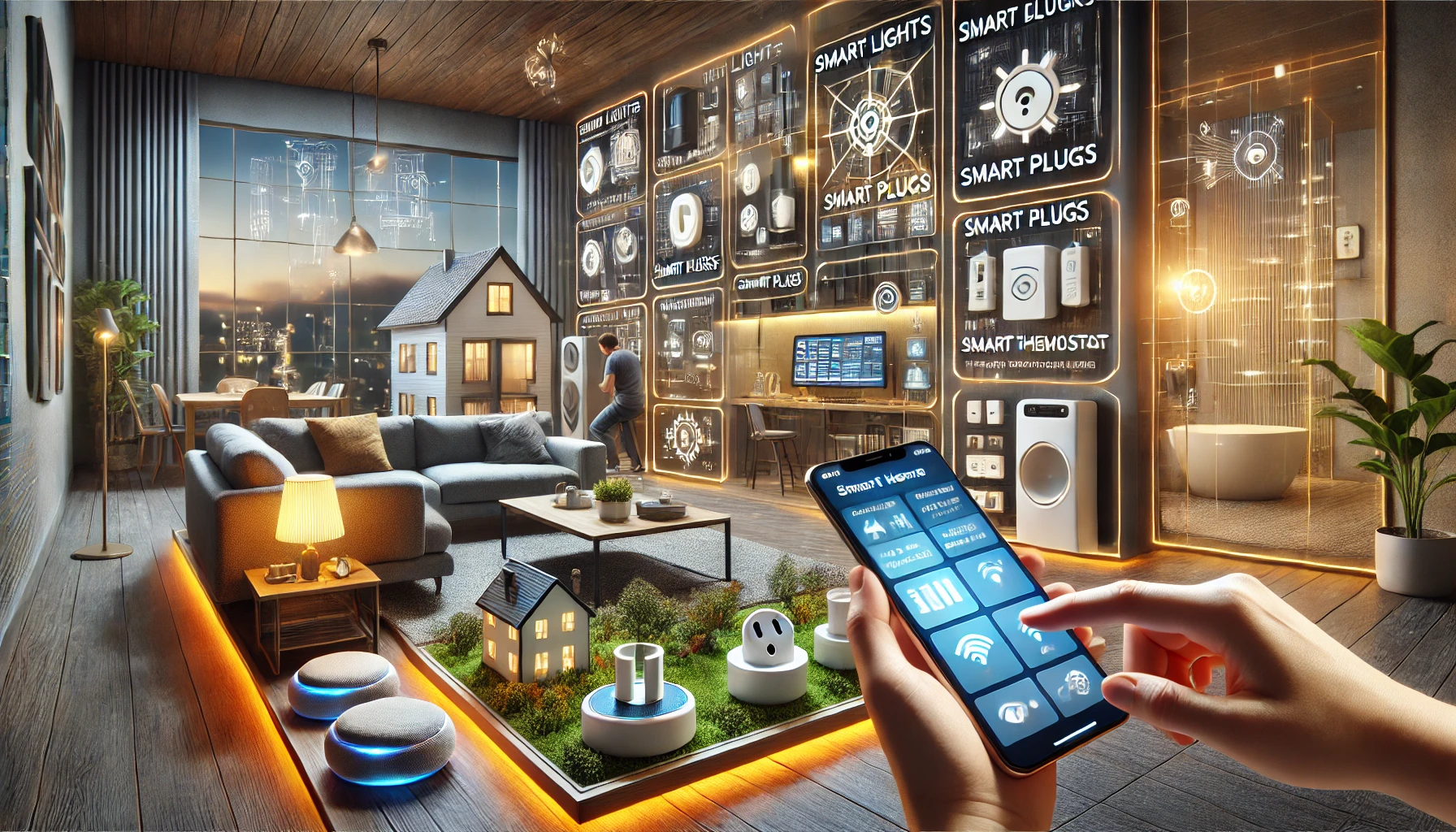
Smart home technology promises convenience, automation, and comfort — but sometimes things just don’t work as expected. Devices disconnect, routines fail, or voice commands get misunderstood. When that happens, it can be frustrating — especially if you’re relying on that technology to manage your daily routines.
Fortunately, most issues have simple fixes. In this article, we’ll walk you through how to troubleshoot common smart home problems so you can get your setup running smoothly again.
Whether you’re a beginner or a seasoned smart home user, this guide will help you solve the most frequent problems quickly and confidently.
Why Smart Devices Malfunction
Before diving into specific issues, it’s helpful to understand why smart devices sometimes stop working properly:
- Wi-Fi instability or signal loss
- Outdated firmware or app versions
- Power interruptions
- Incompatible device integrations
- Conflicting routines or automations
- Overloaded networks with too many devices
The good news: most problems stem from basic miscommunication between devices and can be fixed in minutes.
Problem 1: Devices Disconnect From Wi-Fi
This is one of the most common smart home headaches — especially for devices like cameras, thermostats, or plugs.
Possible causes:
- Weak Wi-Fi signal in that area
- Device too far from router
- Router rebooted or settings changed
- Device switched to 5GHz instead of 2.4GHz
How to fix it:
- Restart the device (unplug for 10 seconds, then reconnect)
- Reboot your router
- Make sure the device is connected to the 2.4GHz network (most smart devices require it)
- Move your router closer or use a Wi-Fi extender or mesh system
- Re-add the device to your smart home app if needed
Pro tip: Label your 2.4GHz and 5GHz networks separately to avoid confusion.
Problem 2: Voice Commands Don’t Work or Misfire
Smart speakers sometimes don’t recognize your command — or worse, execute the wrong action.
What causes this:
- Similar device names (e.g., “Living Room Light” and “Living Area Light”)
- Mispronounced names or complex phrasing
- Ambient noise interfering with voice pickup
- Microphone turned off
- Internet outage or assistant service issue
Solutions:
- Rename devices with clear, distinct names (e.g., “Sofa Lamp” instead of “Light 1”)
- Speak slowly and clearly
- Check for mic mute (many speakers have a physical mute button)
- Use the assistant app to review what it heard
- Reboot the speaker if it becomes unresponsive
Bonus tip:
- Use voice match to personalize responses for each household member.
Problem 3: Devices Not Responding in the App
Sometimes the app shows the device as “offline” or “unavailable,” even though it’s powered on.
Common causes:
- Wi-Fi interference
- Device hasn’t updated firmware
- App is out of sync or outdated
- Mobile data issues on your phone
What to try:
- Force-close and reopen the app
- Ensure your phone is on the same Wi-Fi as the device
- Update both the device firmware and the app
- Reboot the device
- Log out and log back into the app
If issues persist, try removing and re-adding the device to your smart home account.
Problem 4: Routines or Automations Don’t Trigger
If your lights aren’t turning on at sunset or your morning routine fails, it’s often a small detail that got overlooked.
Reasons routines may fail:
- Trigger conditions not met (e.g., only triggers when someone is home)
- Wrong time zone or daylight saving conflict
- Deleted device or renamed action
- Conflict with another routine
Fixes:
- Double-check trigger settings (time, motion, voice, location)
- Update the time zone in your smart home hub or app
- Make sure all devices in the routine are online and reachable
- Test routine manually from the app
- Recreate the routine from scratch if needed
Pro tip: Use notification actions to get confirmation when a routine is triggered.
Problem 5: Smart Lights Flicker or Don’t Respond
This can happen if your lights are on a dimmer switch or there’s voltage fluctuation.
Likely causes:
- Incompatible light bulb and switch combo
- Loose wiring or poor contact
- Electrical interference
- App miscommunication
How to fix it:
- Make sure you’re using smart bulbs with regular switches, or smart switches with regular bulbs — avoid mixing both
- Tighten the bulb
- Turn the light switch fully on and leave control to the app
- Reset the bulb (usually by turning it on/off several times in a row)
- Update firmware and test with another bulb if possible
Problem 6: Smart Plugs Don’t Turn On/Off as Scheduled
Smart plugs are handy — until they stop obeying your schedule.
Causes:
- Time settings changed
- Plug not receiving power
- Conflicting automations
- App or cloud service errors
Solutions:
- Double-check scheduled times and time zone
- Try toggling the plug manually in the app
- Test the physical outlet with another device
- Reboot the plug and update its firmware
- Recreate or reset the schedule
Tip: Add a small LED lamp to test whether your plug is functioning before connecting a critical appliance.
Problem 7: Motion Sensors Trigger Unexpectedly
Motion sensors that act up can cause lights to flash, alarms to go off, or routines to activate randomly.
Causes:
- Pets triggering the sensor
- Placement too close to windows or heat sources
- Sensitivity settings too high
- Delay/reset timer too short
Fixes:
- Adjust the angle and height of the sensor
- Reduce sensitivity in the app
- Use pet-immune sensors
- Increase timeout/delay to prevent constant triggers
- Test at different times of day to eliminate false triggers
Problem 8: Camera or Doorbell Not Streaming or Recording
If your video feed won’t load or isn’t capturing events, it’s likely a connectivity or settings issue.
Common culprits:
- Bandwidth overload
- Cloud service delay
- SD card issues (if local storage is used)
- Privacy mode activated
How to troubleshoot:
- Reboot the camera and router
- Lower video quality setting if bandwidth is low
- Format or replace the SD card
- Check if “privacy mode” or “recording off” is enabled
- Update the firmware and app
Bonus: Position your camera closer to your router or use a mesh extender for improved performance.
Problem 9: Smart Locks Not Responding
A smart lock that doesn’t unlock can quickly become a real problem.
Causes:
- Battery is low or dead
- Misalignment with door frame
- App connectivity issues
- Auto-lock timing conflict
Fixes:
- Replace or recharge batteries
- Manually test locking/unlocking alignment
- Check the lock’s calibration via app
- Turn off auto-lock temporarily if it’s malfunctioning
- Perform a full reset if needed
Safety tip: Always keep a physical key or backup entry method available.
General Troubleshooting Checklist
When in doubt, try this basic sequence:
- Check Wi-Fi signal and router status
- Restart the device
- Update the firmware
- Check app permissions and network access
- Re-add the device if problems persist
- Contact support or visit online forums for your brand
Final Thoughts: Stay Calm and Troubleshoot Smart
Smart homes can hit snags, but almost every problem has a fix. With a bit of patience and the right steps, you’ll be back in control in no time — and probably learn something useful for the future.
Keep your devices updated, your routines organized, and your Wi-Fi strong — and your home will stay smart, smooth, and stress-free.
Because even the smartest homes need a little support sometimes.